Shipping Cost and Delivery Date - PrestaShop Module
Show the shipping cost and the estimated delivery date right next to the product. Take into account your shipping schedule, working days and holidays.
- Version 1.2.1
- Last update 2026-10-02
- PrestaShop compatibility 8.0 – 9.x
- Multistore Not tested
- Cron job No
- Languages
- Delivery time Sent automatically by e-mail
€56.03 incl. VAT
Installation ⓘLet me install the module for you. I will install it, test it and verify that it works correctly.
Technical support
Domain ⓘEnter the URL of the domain where the module will be installed.
| Product price | |
| Selected options | |
| Total |
Shipping cost and delivery date PrestaShop
Show the shipping cost and estimated delivery date right on the product page. Take the dispatch schedule, working days and holidays into account.
Available languages:

![]()

Cheapest available shipping
Information about the cheapest available delivery appears right next to the product. The module can show the price together with the carrier logo on the product page and in product lists.
Estimated delivery date
The estimated date takes into account the configured dispatch days, packing hours, courier working days and holidays. After the cut-off time is passed, the date may shift according to the schedule.
Carrier list on the product page
On the product page the customer can open a list of available carriers and compare costs. Check the configuration of carriers, country and price rules so the displayed information matches the cart.
Who is this module for?
A solution for shops that want to answer delivery questions before the customer even reaches the cart.
What can you configure in the module panel?

01 / General Settings
Choose the information visible to the customer
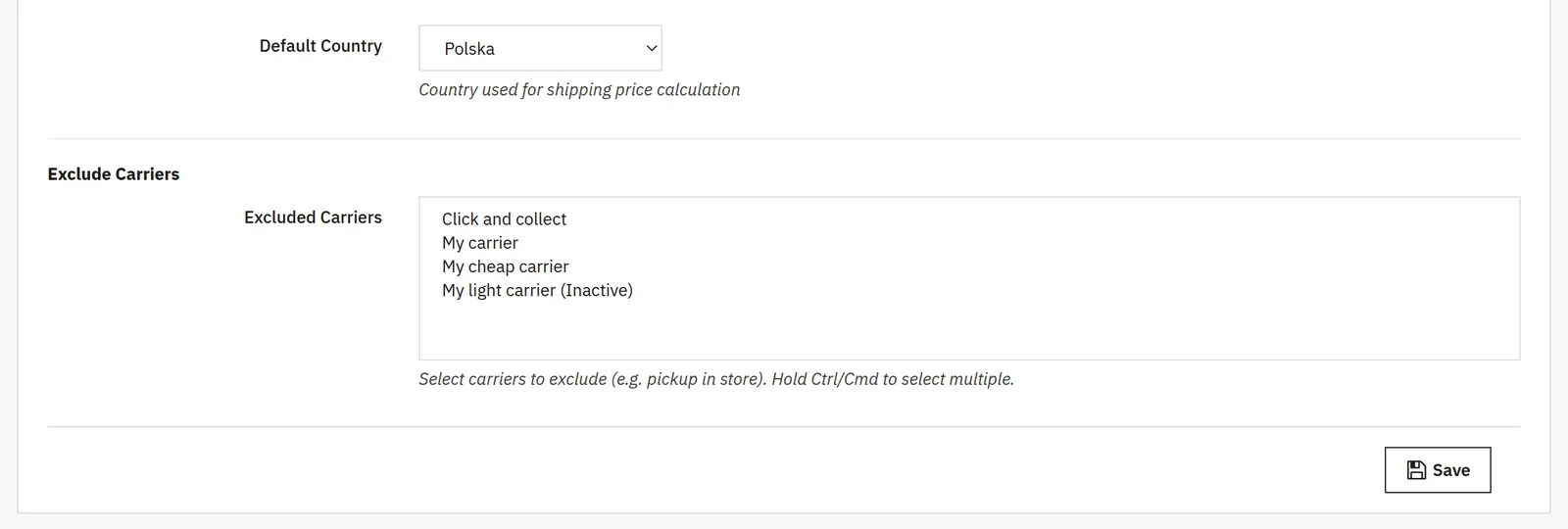
You enable the shipping cost message and the estimated delivery date separately. You also set the country used for calculations and the carriers included in the display.
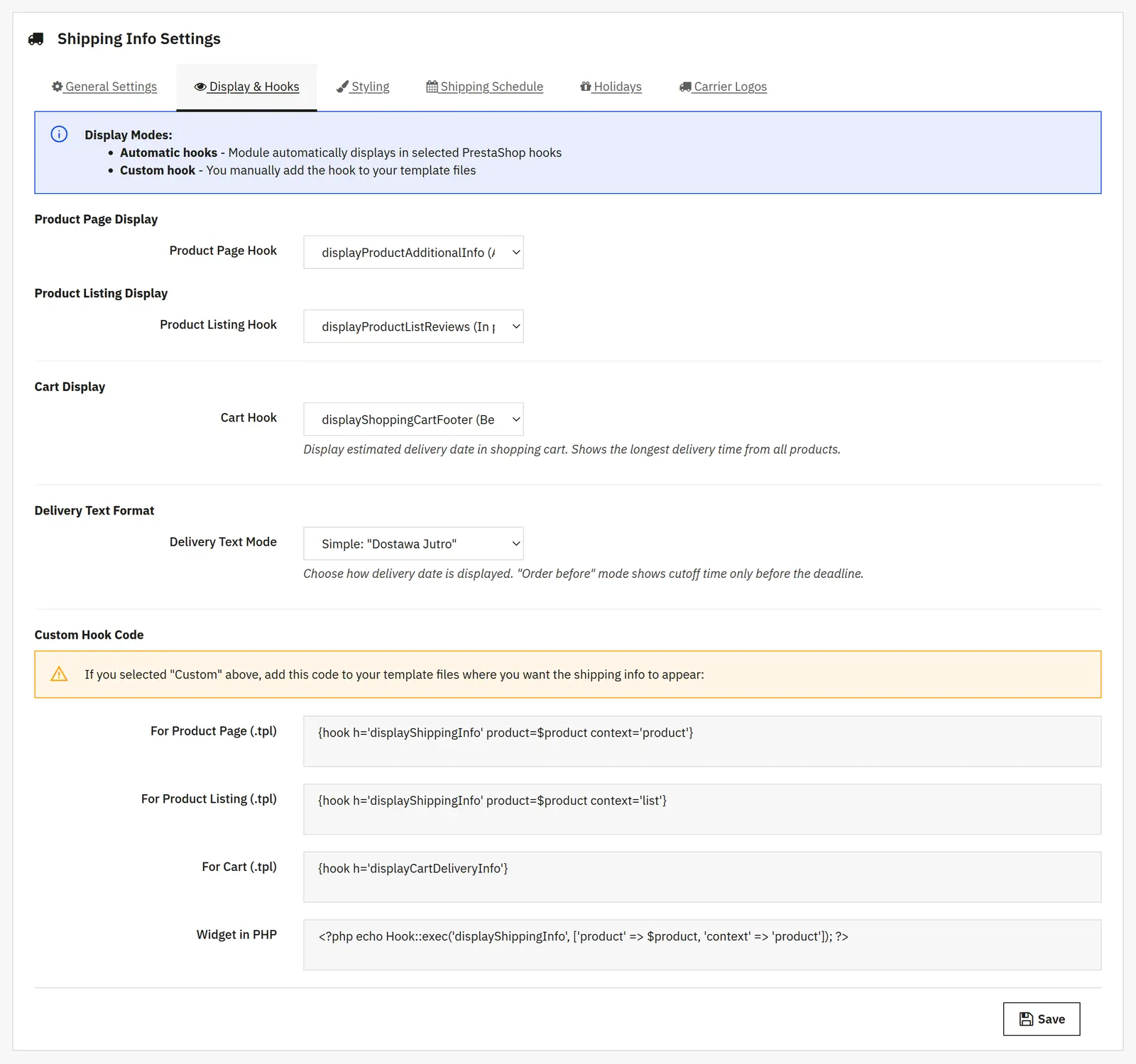
- Show cheapest shipping
- Enables the “Shipping from…” message with the lowest calculated cost among the included carriers. The carrier logo can appear next to the message.
- Show delivery date
- Enables the estimated date, e.g. “Tomorrow” or a weekday name. The date follows the schedule settings, days off and the product preparation time.
- Show “more” in product lists
- Lets customers open the carrier list also from categories and search results. On the product page the carrier list button is available regardless of this switch.
- Delivery time in days
- Sets the number of delivery days counted after dispatch, following the courier's working calendar. This is a shared module setting, not a separate date for each carrier.
- Default country
- Sets the country whose zone is used to calculate the displayed shipping costs. The choice should match the market for which you show this information.
- Excluded carriers
- Lets you skip selected methods in the module messages, e.g. in-store pickup, so it is not presented as the cheapest shipping. It does not disable these delivery methods in the shop itself.

02 / Display & Hooks
Decide where the delivery information appears
The module has separate settings for the product page, product lists and the cart. You can use the available theme hooks or place the message manually in a template.
- Position on the product page
- Options: disabled, the additional information section (
displayProductAdditionalInfo), near the price (displayProductPriceBlock), the purchase button area (displayProductActions) or a custom position. The exact spot depends on where the theme calls the given hook. - Position in product lists
- The message can use the
displayProductListReviewshook in the product thumbnail ordisplayProductPriceBlocknext to the price. Disabling and manual placement are also available. - Position in the cart
- You choose
displayShoppingCartFooter,displayShoppingCart, a custom position or disabling. The delivery information takes into account the longest preparation time among the products in the cart. - Delivery date message format
- Three variants: simple (“Delivery Tomorrow”), “At your door Tomorrow” and a message with the cut-off time (“Order before 14:00…”). The time in the last variant appears only before the deadline passes.
- Codes for manual placement
- The panel provides snippets for the product page, list and cart templates plus a PHP call example. The custom mode requires adding the proper call in the theme; selecting this option alone does not place the message on the page.

03 / Styling
Match colors and text size to your shop
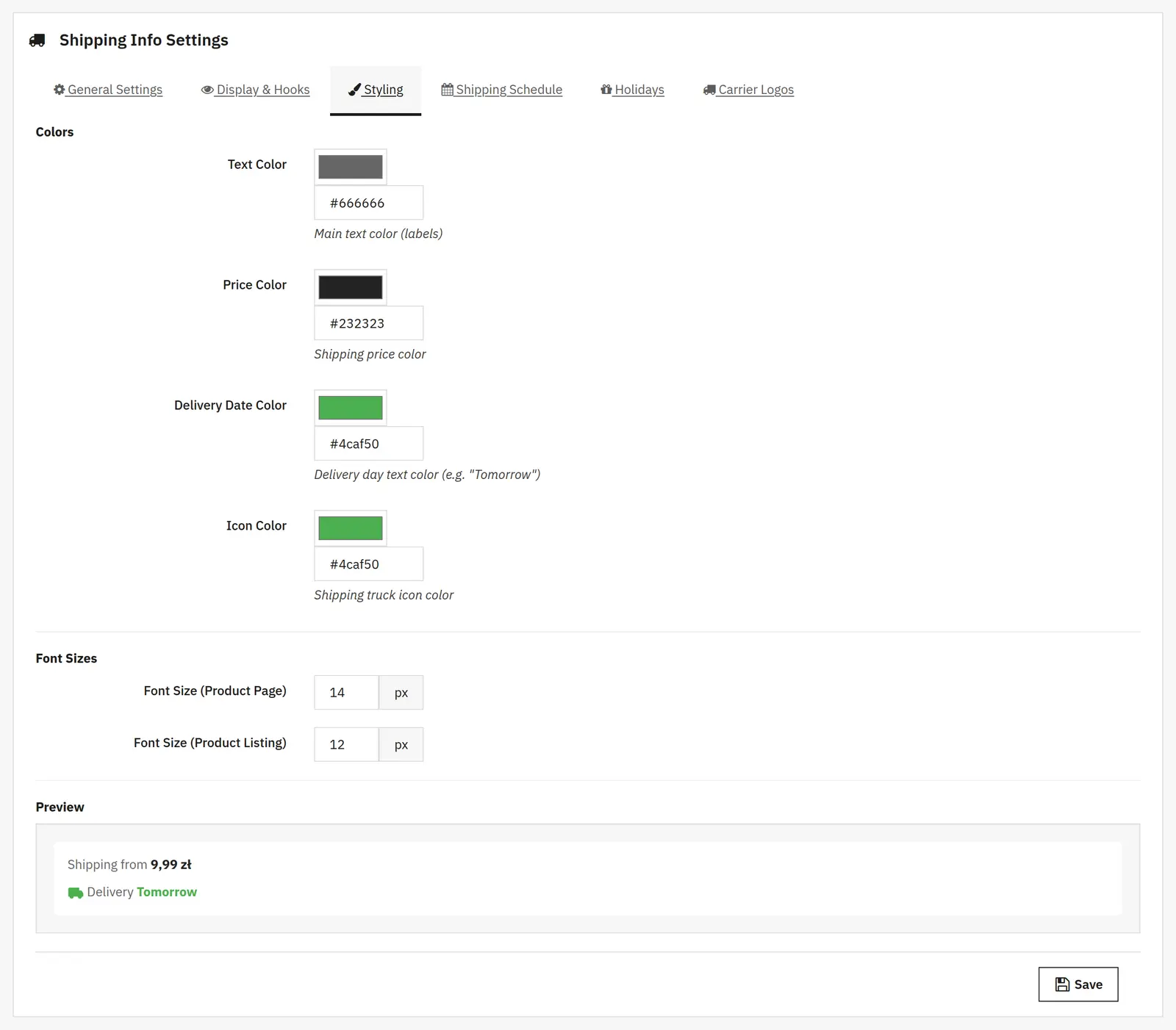
The key elements of the message have separate settings. You pick colors from a palette or enter them as a HEX code.
- Text color
- Changes the color of labels such as “Shipping from” and “Delivery”.
- Price color
- Sets the color of the shipping amount, independently of the surrounding text.
- Delivery date color
- Highlights the estimated delivery day, e.g. the word “Tomorrow”.
- Icon color
- Changes the color of the delivery truck icon in the message. It does not change the colors of the uploaded carrier logos.
- Text size on the product page
- Sets the text size in the 10–24 px range.
- Text size in product lists
- A separate 10–20 px range lets you fit the information to smaller product tiles.
- Preview
- Shows a sample price and date with the selected colors. It helps judge readability before saving; check the final look in your shop theme as well.

04 / Shipping Schedule
Separate dispatch days from delivery days
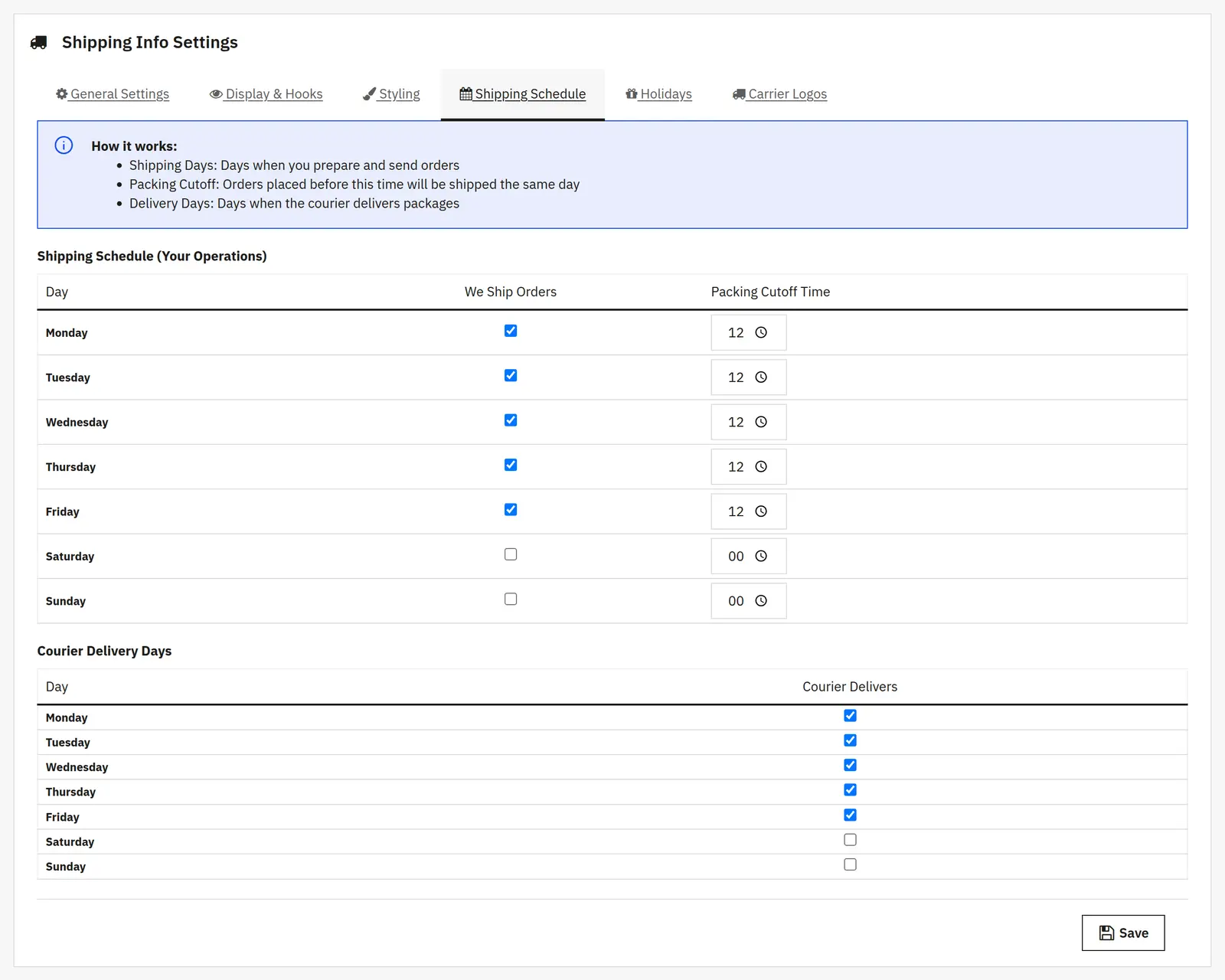
The warehouse and the courier do not have to follow the same calendar. The module lets you define these two schedules independently for each day of the week.
- Order dispatch days
- You mark the days on which the shop prepares and ships orders. The schedule is also used when counting product preparation days.
- Packing cut-off time
- For each day you set the time before which a product with no extra preparation time can be included in that day's dispatch. Once it passes, the module looks for the next available dispatch date.
- Courier delivery days
- You mark the weekdays counted when calculating transport time. This is the module's shared delivery calendar.
Example: with dispatch and delivery from Monday to Friday, a 14:00 cut-off and one-day transport, an order placed on Friday after 14:00 may get an estimated date on Tuesday. The example assumes no holidays and no extra preparation.
05 / Holidays
Account for breaks in operation
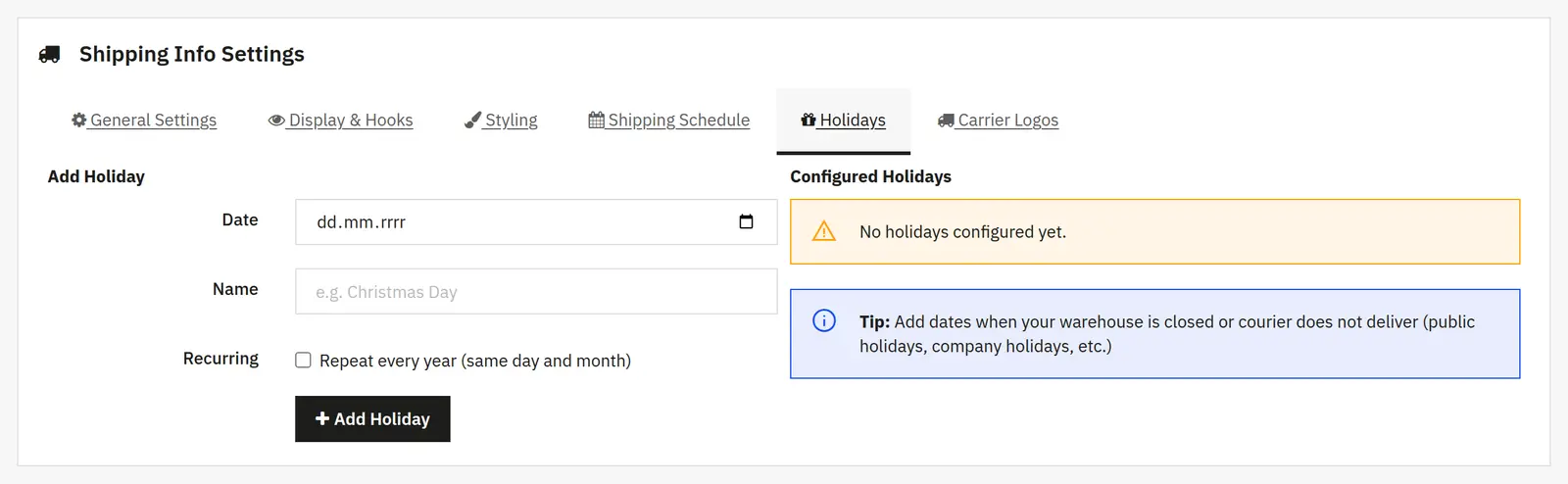
Add dates to be skipped when estimating delivery. The list is shared by preparation, dispatch and delivery.
- Date
- Points to a specific day off, e.g. a holiday or a warehouse closure. Add a multi-day break as separate dates.
- Name
- Makes the entry easier to recognize in the list, e.g. “Christmas” or “Stocktaking”.
- Repeat every year
- Repeats the exclusion for the same day and month in following years. Movable holidays require entering the correct dates for each year.
- Adding and removing
- A new entry appears in the list of configured days off. You can remove an outdated day from the list after confirmation.

06 / Carrier Logos
Complete the carrier presentation
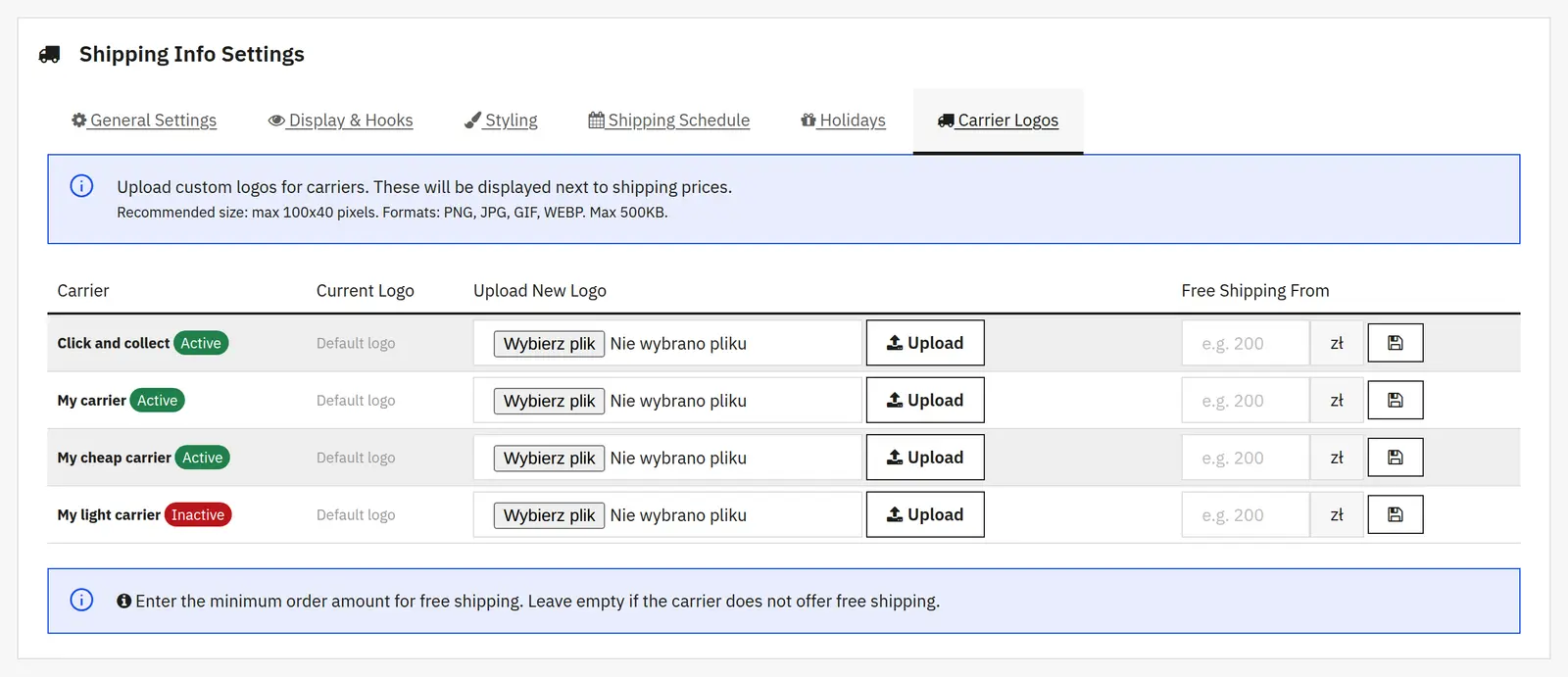
The table shows the carriers, their status and the current logo. For each one you can upload your own file and enter an informational free shipping threshold.
- Custom logo
- Adds an image displayed next to the shipping costs of the given carrier. The panel indicates PNG, JPG, GIF and WEBP formats, a 500 KB limit and a recommended size up to 100 × 40 px.
- Free shipping from
- Sets the amount presented as the free shipping threshold for a specific carrier. An empty field means no such information.
- Carrier status
- The active/inactive label helps check which methods the configuration applies to. You do not change the carrier status in this tab.
The threshold in this tab is information for the customer. It does not create a free shipping rule in the cart. Free shipping conditions must be configured separately in PrestaShop and both settings kept consistent.
07 / Additional product setting (Preparation Time)
Add a preparation time for a specific product
A made-to-order product may need more time than goods ready to ship. On its page in the back office you will find a separate module field.
- Preparation time
- You enter the additional number of shop working days needed before dispatch. A value of 0 means no extra preparation. The setting affects the product's estimated date, and in the cart the module uses the longest preparation time among its products.
The date is estimated from the configuration and is not a carrier confirmation. With long preparation times or multi-week breaks an extra test is needed: the current version limits the calendar search range.
Data sheet
- Version
- 1.2.1
- Last update
- 2026-10-02
- PrestaShop compatibility
- 8.0 – 9.x
- PHP version
- 7.4 – 8.3
- Languages
- DE, EN, ES, FR, IT, PL
- Multistore
- Not tested
- Cron job
- No
- Core overrides
- No
- Theme compatibility
- Any theme
- External service required
- Not required
- Source code
- Open, no ionCube
- Licence
- 1 shop (domain), no time limit
- Updates
- Free for 12 months
- Technical support
- Free for 6 months
- Delivery time
- Sent automatically by e-mail
- VAT invoice
- Yes
- Returns
- As stated in the terms
- Package size
- 69 kB
- Demo link
- Link
- Documentation
- Link
No customer reviews for the moment.