

Media Servers in a PrestaShop Store with SSL on the Main Domain Only
Media servers with SSL on the main domain. Anyone who has tried to configure media servers in PrestaShop with an SSL certificate bought only for the main domain  We go to Advanced Parameters -> Performance
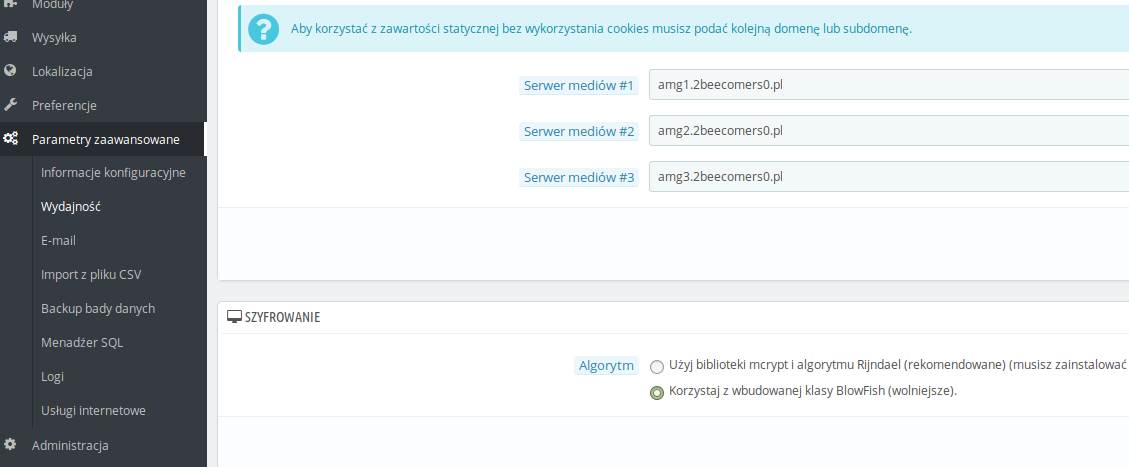
In the server fields we enter made-up, temporary subdomains, e.g. amg1.ajit0.pl | amg2.ajit0.pl | amg3.ajit0.pl, as in the image below, click save and get an error message like this. Everything is going according to plan.
We go to Advanced Parameters -> Performance
In the server fields we enter made-up, temporary subdomains, e.g. amg1.ajit0.pl | amg2.ajit0.pl | amg3.ajit0.pl, as in the image below, click save and get an error message like this. Everything is going according to plan.
 Now we log in to phpMyAdmin at our hosting provider. We click the database linked to our online store.
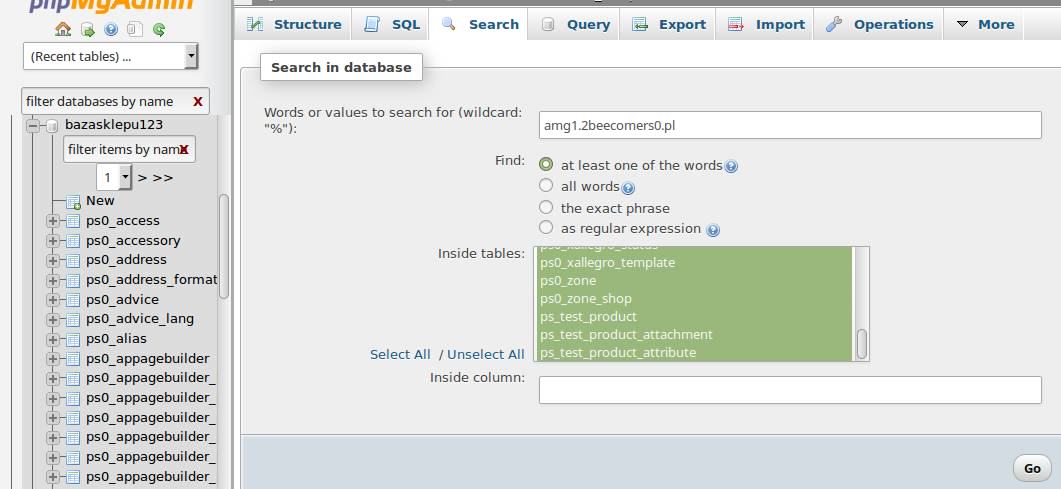
As you can see in the image below: 1. we select the store database, 2. we click Search above, 3. we click Select All tables, 4. we enter our first temporary subdomain, in my case amg1, and click Search.
Now we log in to phpMyAdmin at our hosting provider. We click the database linked to our online store.
As you can see in the image below: 1. we select the store database, 2. we click Search above, 3. we click Select All tables, 4. we enter our first temporary subdomain, in my case amg1, and click Search.
 Now in the search results we look for matches; ours is next to ps_configuration, and we click Browse, then click the pencil (Edit).
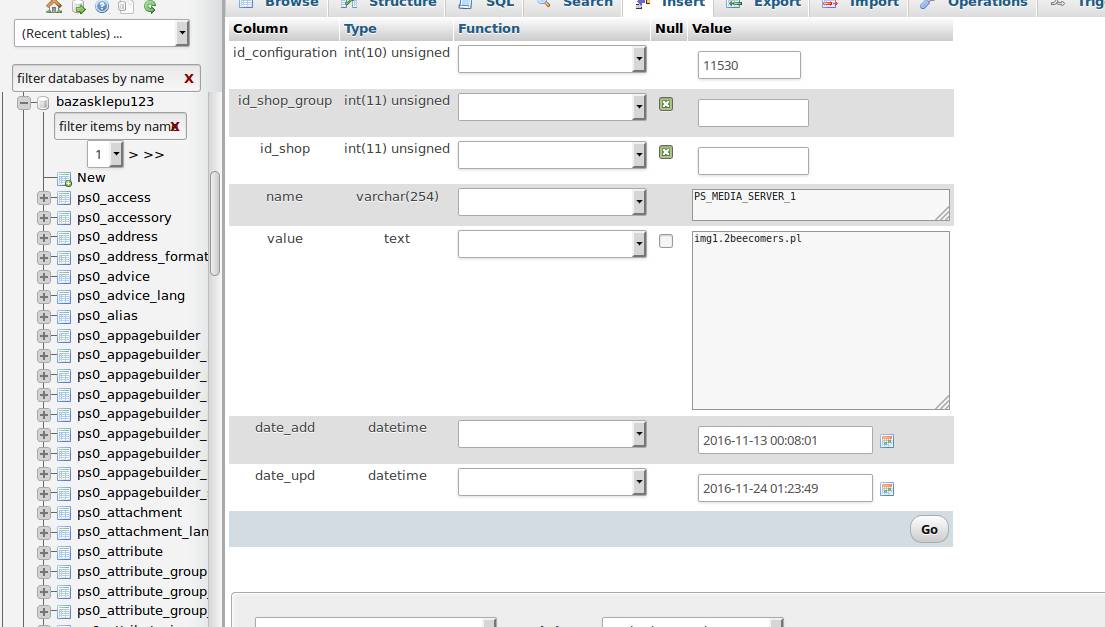
 In the place where our temporary domain is entered, we enter the correct one, set earlier, i.e. img1.ajit.pl, and click Go.
 Now we have to repeat the pencil edit for the remaining made-up subdomains. We click Search, enter amg2.ajit.pl, edit it to img2.ajit.pl and click the Go button. Of course, we repeat the same step for the 3rd one as well. Once the 3rd subdomain is prepared in the same way, we can close phpMyAdmin, go to Preferences -> General in the store admin panel and enable SSL. As a result, our product images will be displayed on the page, and the store will run much faster.
Media servers are a great way to optimise our store, and thanks to this tutorial you have surely managed to set them up with an SSL certificate. If you have any problem connecting the subdomains, describe it in a comment.
Now we have to repeat the pencil edit for the remaining made-up subdomains. We click Search, enter amg2.ajit.pl, edit it to img2.ajit.pl and click the Go button. Of course, we repeat the same step for the 3rd one as well. Once the 3rd subdomain is prepared in the same way, we can close phpMyAdmin, go to Preferences -> General in the store admin panel and enable SSL. As a result, our product images will be displayed on the page, and the store will run much faster.
Media servers are a great way to optimise our store, and thanks to this tutorial you have surely managed to set them up with an SSL certificate. If you have any problem connecting the subdomains, describe it in a comment.
Media servers with SSL on the main domain
Anyone who has tried to configure media servers in PrestaShop with an SSL certificate bought only for the main domain has had quite a problem. In the preferences we paste only the subdomain address, without http or https. With a single standard SSL certificate for the main domain, e.g. mojesklepy.pl, we cannot create subdomains with a certificate. Below we present the problem and its free solution.Problem
If we enter our subdomains, pointed at the main directory of our store, while SSL is enabled, we get no error. However, when we check the page, we can see that the product images have not loaded. What is the problem? PrestaShop took the subdomain addresses img1.mojesklepy.pl, img2... and added https to them, creating a path in the form https://img1.mojesklepy.pl, even though we have not bought certificates for the subdomains, let alone an expensive WILDCARD SSL certificate.Solutions
Buy an expensive wildcard SSL certificate for the main domain Buy certificates for each of the subdomains Follow the instructions below, free of charge We assume that the subdomains have already been correctly created with our hosting provider and redirected to the main directory of our store. We go to the admin panel of our store. If SSL is enabled, we disable it under Preferences -> General. If it is disabled, we move on.
We go to Advanced Parameters -> Performance
In the server fields we enter made-up, temporary subdomains, e.g. amg1.ajit0.pl | amg2.ajit0.pl | amg3.ajit0.pl, as in the image below, click save and get an error message like this. Everything is going according to plan.
Now we log in to phpMyAdmin at our hosting provider. We click the database linked to our online store.
As you can see in the image below: 1. we select the store database, 2. we click Search above, 3. we click Select All tables, 4. we enter our first temporary subdomain, in my case amg1, and click Search.
Now in the search results we look for matches; ours is next to ps_configuration, and we click Browse, then click the pencil (Edit).
In the place where our temporary domain is entered, we enter the correct one, set earlier, i.e. img1.ajit.pl, and click Go.
Now we have to repeat the pencil edit for the remaining made-up subdomains. We click Search, enter amg2.ajit.pl, edit it to img2.ajit.pl and click the Go button. Of course, we repeat the same step for the 3rd one as well. Once the 3rd subdomain is prepared in the same way, we can close phpMyAdmin, go to Preferences -> General in the store admin panel and enable SSL. As a result, our product images will be displayed on the page, and the store will run much faster.
Media servers are a great way to optimise our store, and thanks to this tutorial you have surely managed to set them up with an SSL certificate. If you have any problem connecting the subdomains, describe it in a comment.
Get notified about new articles
Subscribe by e-mail or turn on browser notifications — we only send new blog posts, nothing else.




Comments
No comment at this time!
Leave your comment