

How to translate a Prestashop store template

Prestashop is open-source software developed by its community. This means that a fresh template in a language other than English may need a few manual fixes. The Prestashop online store software is open and is developed by the community built around it. This means that these people work for the community voluntarily. It follows that if we have a fresh store template installed in a language other than the base one – that is, English – we will have to make a few corrections by hand.
Let us start with the situation in which we do not yet have the language we want to use installed at all. In that case we log in to the “back office” of our store and choose ‘Localization’ -> ‘Localization’ from the menu, which displays the language import window. After choosing a country from the drop-down list and ticking the options that should additionally be downloaded, we click ‘Import’. Below, we also choose additional options such as whether it should be the default language, the currency, the time zone, and the units of measure and weight. When everything is ready, we click ‘Save’.
Now the language we need has been imported and we can see how the store template looks after these changes. Depending on how large and active the Prestashop community is in the country whose language we chose, we will get a corresponding translation. If we notice a word that is untranslated or translated badly, for example by a machine translator, we can translate it manually.
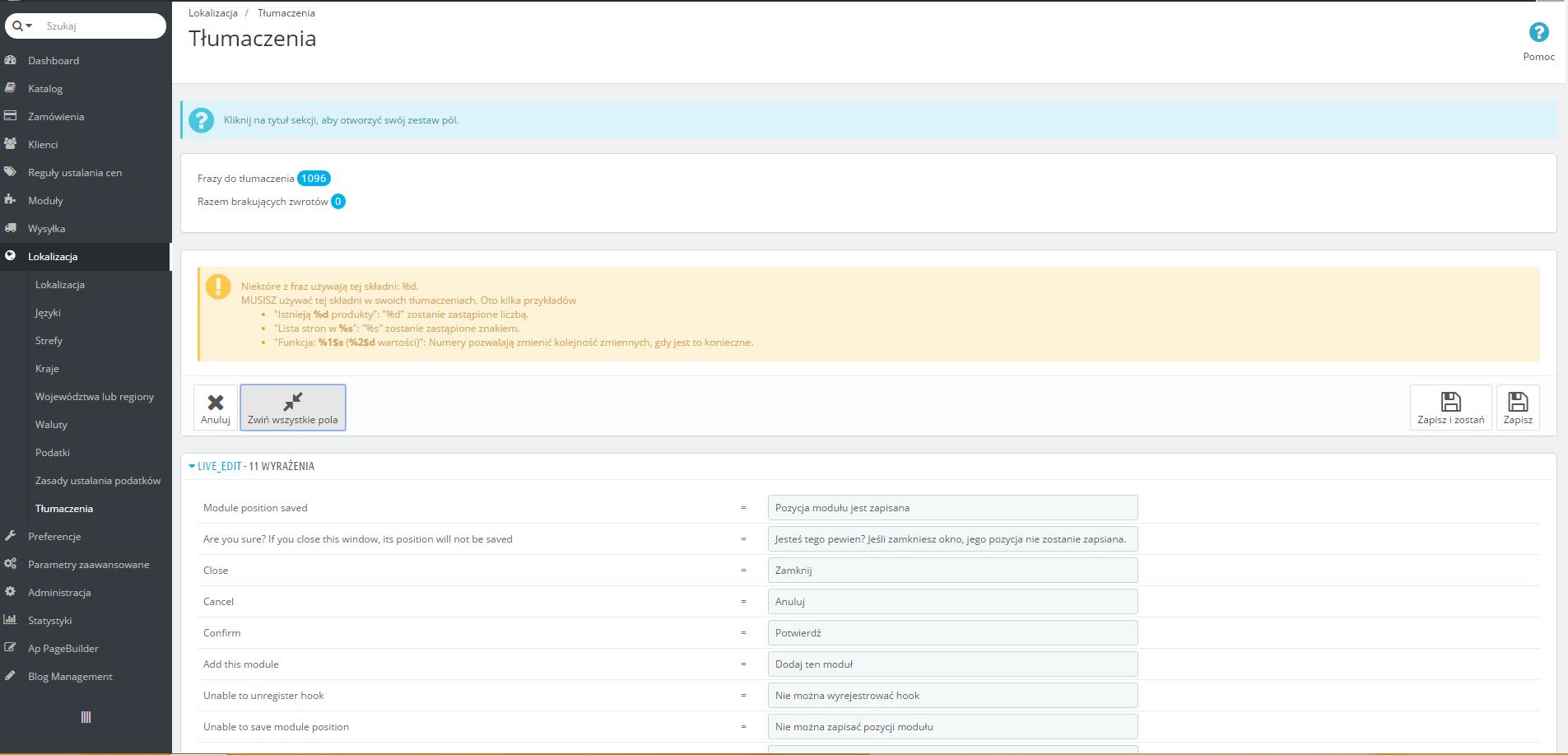
The main place where this can be done is the “back office” under the ‘Localization’ -> ‘Translations’ tab. In this menu, besides manual translation, we can also update the language pack. Such official updates are released from time to time by Prestashop. In addition, this is also where you can copy or export the language pack in use.
If we want to translate a specific word, it will most probably be in one of two places. In the first block, set ‘Type of translation’ to ‘Front office translations’, then in the next window choose “Expand all fields”, unless we know exactly which module contains the word we are interested in. Now it is best to use the keyboard shortcut ‘ctrl + f” and search for the (badly translated) word. If it has been located, we can type its new, correct form in the column on the left. If the field was empty and highlighted in red, it means there was no translation for it at all and the word was using the base, original form.
If the translation could not be found, go back to the previous window and in ‘Type of translation” choose “Installed modules translations” and proceed in the same way.
 Back office
 Back office
 Get notified about new articles
Subscribe by e-mail or turn on browser notifications — we only send new blog posts, nothing else.




Comments
No comment at this time!
Leave your comment