

PrestaShop optimization: speeding up your store step by step!

Optimizing and speeding up a PrestaShop store? Anyone who has installed a script on their own server was not always happy with its performance. Optimizing and speeding up a PrestaShop store? Anyone who has installed a script on their own server was not always happy with its performance. We will show you step by step how to optimize your PrestaShop-based online store.
Before we go through the points, you must remember that the most depends on a few main factors:
- The theme
- The size of the database
- Hosting. Which server we recommend and how to optimize it is covered at the end.
1. GZIP compression
Check whether GZIP compression is enabled on your server. You can check it at this link. All you need to do is enter your store's URL. If it is not enabled, submit a request to your hosting provider. They should have no problem enabling the service on your virtual machine. In most cases gzip compression is enabled by default, but I know data centers where we have to switch compression on ourselves in the admin panel. One more quick tip: so as not to wait for a reply from support, you can easily find instructions for enabling compression on Google. Just type in the search box "How to enable gzip compression".2. PrestaShop optimization with cache enabled, CSS and JS combining and more
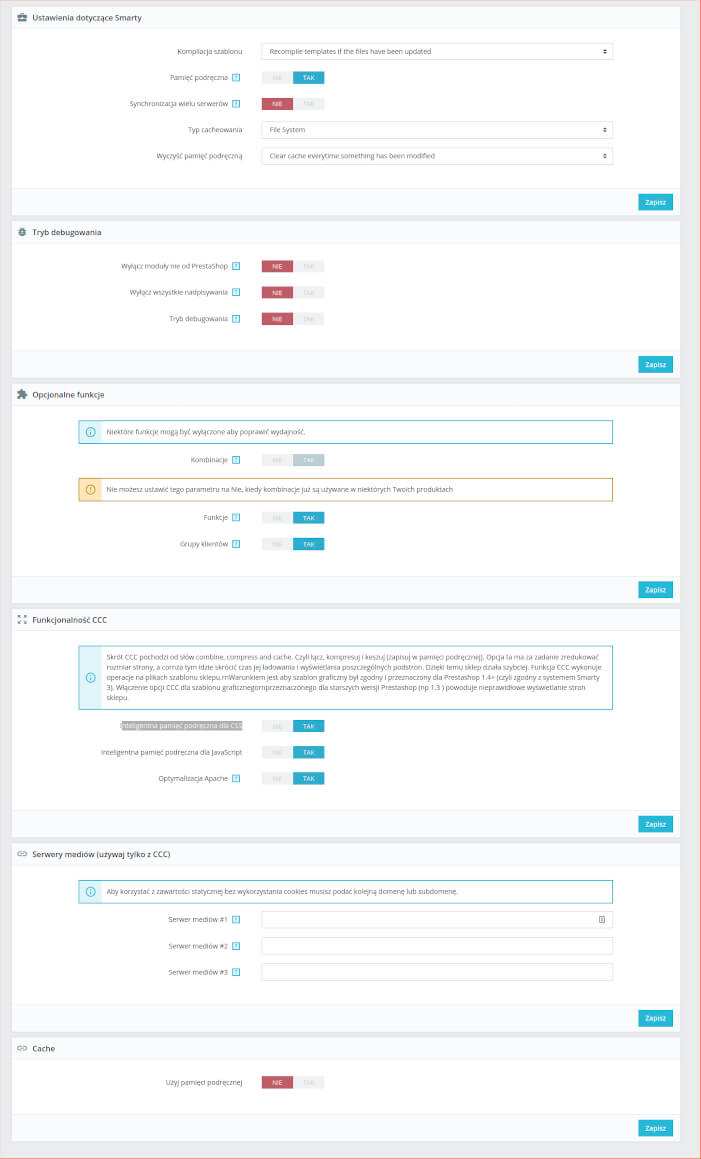
Go to the subpage preferences -> performance and set the data below as in the screenshot below. This setting will speed up your PrestaShop-based store. In exceptional cases, the CCC functionality can do harm with a poorly written theme. If you have everything set to yes and the store loads even slower than before, try unchecking smart cache for CSS and check again, or for JS and check again. You can check the before and after improvement tests on GTmetrix or Pingdom Tools. Remember to clear the cache after every change using the "clear cache" button.
3. Raise the server's PHP to at least 7.2 or 7.3
This point also depends on the installed PrestaShop version. If you have a version below 1.7.6.8, use PHP 7.2. If higher, then PHP 7.3. For version 1.6 use 7.1. You must be especially careful here. Sometimes an installed module may not be compatible with a higher PHP version. In the advanced parameters -> Information tab you can check which version your PrestaShop installation runs on. If the store stops working after raising the PHP version, go back to your previous version as soon as possible. You can raise it in the admin panel or by asking the server administrator. Analogously to what I described above, you can type into Google "How to change the PHP version on a server".4. Optimize images
Among our clients who commissioned optimization, we often see images that are too large in the slider, products and banners. Presta creates 4-5 thumbnails of one product photo. That is very good! On the category page the product photos are smaller than the photos on the product page. How to check whether your images are too big? Go to the tab appearance -> images, where the dimensions are given. Home-default is usually the size of photos on the product page, large default is the photos on the product page. You must check whether the images are not too big for the places where they are displayed, e.g. by right-clicking the image and choosing show image.5. Disable installed but unused modules
Were modules installed that you do not use? Remove them! With full PrestaShop optimization we get rid of surplus modules. The recommended hosting described below has a feature that lets us switch off, with one click, the modules collecting statistics we do not need, and they can really bloat our database, making the store load really slowly!6. Optimize the database
PrestaShop collects many statistics; let's not kid ourselves, most of us use Google Analytics anyway for collecting and analyzing data. With heavy traffic on the store, the collected data can put a load on it. The simplest way is to download dboptimizer from mypresta. Cleaning and optimizing the database is child's play, and every few weeks you only need to click the buttons available in the module.7. Change hosting
You probably got to this post because your store is working poorly and slowly. The sooner you decide to migrate, the better and the less work there will be in the future. We have already described our choice of hosting at this link: Which hosting for PrestaShop. It is one of the most-read articles on our site! Soon it will be updated with the company cyber folks (the former name of linuxpl.com)Recommended server for optimization
We are currently testing and recommending the hosting cyber folks, which also offers the PSOptimizer module for free, thanks to which our store is really fast. Why is that?- The module automatically converts our images to the .webp format, which is suggested by google page insights.
- It disables surplus modules that collect statistics
- It optimizes the database
- It configures LiteSpeed Cache! automatically
- A free SSL certificate
- and many other useful features.
Get notified about new articles
Subscribe by e-mail or turn on browser notifications — we only send new blog posts, nothing else.




Comments
No comment at this time!
Leave your comment